Pair a device
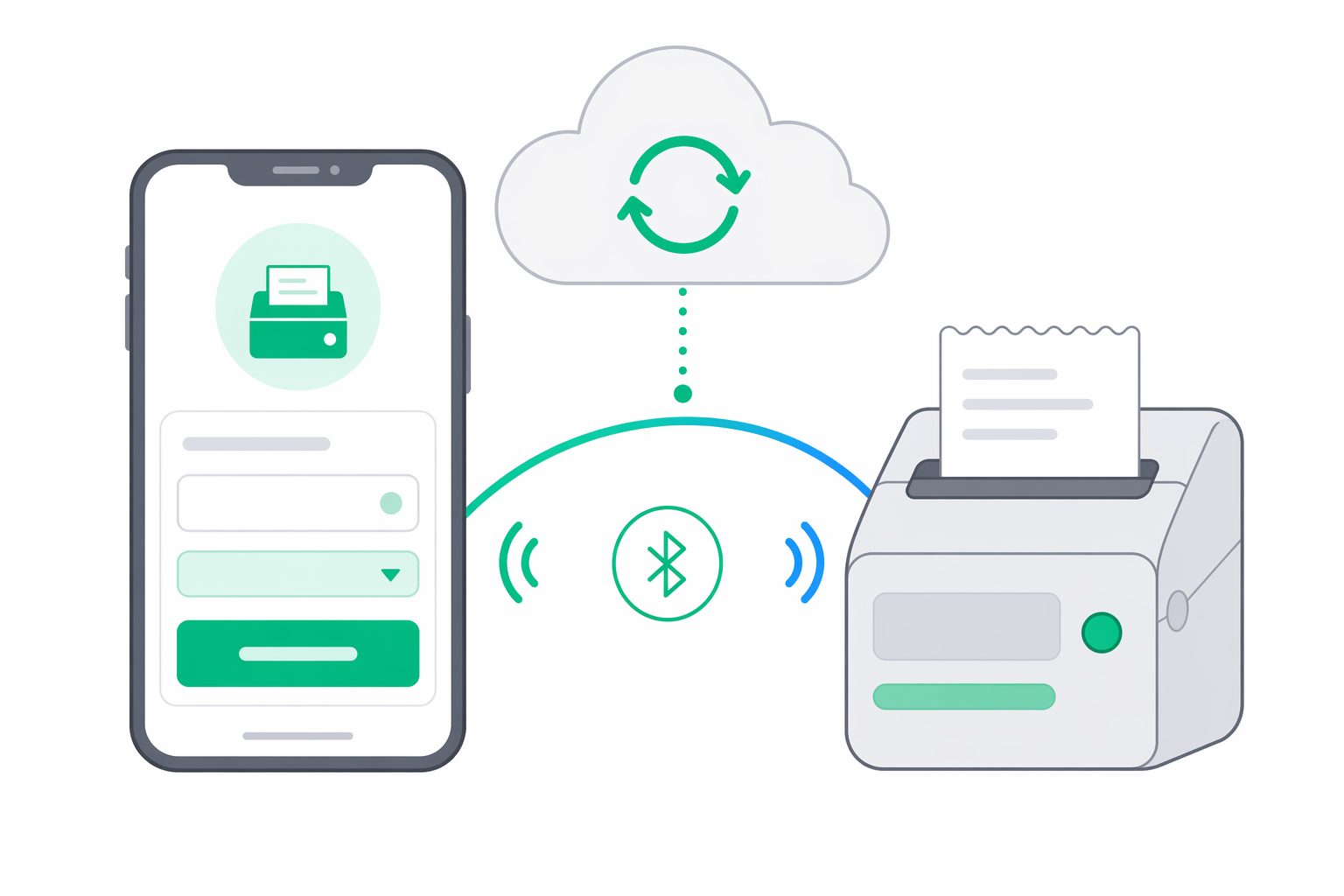
The Device Pairing screen is where you finish setting up a fiscal printer after the app has discovered it. You give the device a name, optionally tag it with a location, pick the right driver, and save. The app stores the device locally first, then registers it with your organization in the cloud.
This page explains every field on the screen, what happens when you tap Pair Device, and how to recover if cloud sync fails.
Before you start
You reach this screen in one of two ways:
- Tap a row on the Device Discovery screen after a Bluetooth or network scan finds your printer.
- Fill in the Manual Connect form when discovery does not find your device.
Either way, the screen opens with the device's identity already filled in. You only need to confirm a few fields and tap save.
Pair a new device
Confirm the device info
The Device Info card shows what the app already knows about the printer:
- Name — the name reported by the device during discovery.
- MAC Address — the Bluetooth address. Empty for network printers.
- Signal — the Bluetooth signal strength in dBm (Bluetooth devices only).
- Suggested Driver — the driver the app guessed based on the device name or network port.
These fields are read-only. If anything looks wrong, go back and re-run discovery.
Name your device
In the Configure card, give the device a name you will recognize in the device list.
- Device Name — for example, Front Counter Printer or Bar Receipt Printer. Pick something specific so staff can tell which printer is which.
- Location (optional) — a free-text label such as Main Store or Terrace. Useful when your business has more than one room or location.
Choose the driver
Tap a chip in the Driver strip to tell the app how to talk to your printer. The available drivers are:
- Datecs
- Daisy
- Eltrade
- Incotex
- Tremol
- MF/JE
- Custom
If discovery suggested a driver, that chip starts selected. Otherwise the app defaults to Datecs — change it if your printer is a different brand.
Tap Pair Device
When you tap Pair Device, the app:
- Saves the device to your local device list.
- Registers it with your organization in the cloud.
- Claims it for this app installation so other devices in the organization know who controls it.
You will see a Registering with cloud… spinner while this runs. When it finishes, a green checkmark appears with the label Device Paired!.
Reconnect after a cloud sync warning
If the app saves your device locally but cannot reach the cloud, the success screen shows:
Cloud sync failed — device saved locally
The printer still works on this tablet — you can print receipts, run reports, and use the device exactly as before. What you lose until cloud sync succeeds:
- The device does not appear in the Portal for your organization.
- Other tablets signed in to the same organization cannot see or take over the printer.
- Reports and receipts that depend on the cloud counterpart are queued locally.
To recover:
Check your network and sign-in status
Make sure the tablet has internet access. If you paired the device while signed out (standalone use), the printer is kept locally and is automatically linked to your organization the next time you sign in — no re-pairing needed. If you are already signed in but the link failed, check the connection and sign back in from Settings; the backfill runs again on sign-in.
Remove and re-pair
Open the Devices tab, remove the device with the failed sync warning, then run discovery and pair it again. This is currently the only way to retry the cloud sync from the app.
Know the limits of this screen
The Device Pairing screen is intentionally focused on saving the device. It does not:
- Send a test print to confirm the driver is correct. The first real print happens from the Receipts tab.
- Open a connection to the printer to verify it is reachable. A printer that is off, out of Bluetooth range, or behind a firewall will still pair successfully and show as Offline in the device list afterwards.
- Offer QR or NFC pairing. Use Device Discovery or Manual Connect.
If you need any of these, do them after pairing from the appropriate screen.
Avoid pairing problems
- Have the printer powered on and in range before you start. Pairing succeeds either way, but the device will show as Offline until the app can actually reach it.
- Use clear, unique names. Counter 1, Counter 2, Bar, Kitchen are easier than Datecs DP-25.
- Tag locations if you have more than one so reports and the Portal can group printers by site.
- Print one receipt right after pairing to confirm the driver choice. If the printer does not respond, remove the device and re-pair with a different driver chip.
Where to next
- Device Discovery — the scan screen that finds Bluetooth and network printers.
- Manual Connect — the fallback form for printers that do not appear in discovery.
- Devices — your saved device list, status indicators, and remove flow.
- Device Detail — per-device settings, signal info, and history.
- Receipts — print your first receipt to confirm the new device works.
- Offline & connection health — what to do when the cloud handshake or printer connection keeps failing.
Find your printer
Use the Find Printer screen in the e-bon app to scan for nearby fiscal printers over Bluetooth or your local network, read the signal strength, and pick the right device to pair.
Create a new receipt
Build a receipt on the device — add line items, pick the VAT rate and department, choose a payment method, then preview and print.