Devices
Devices
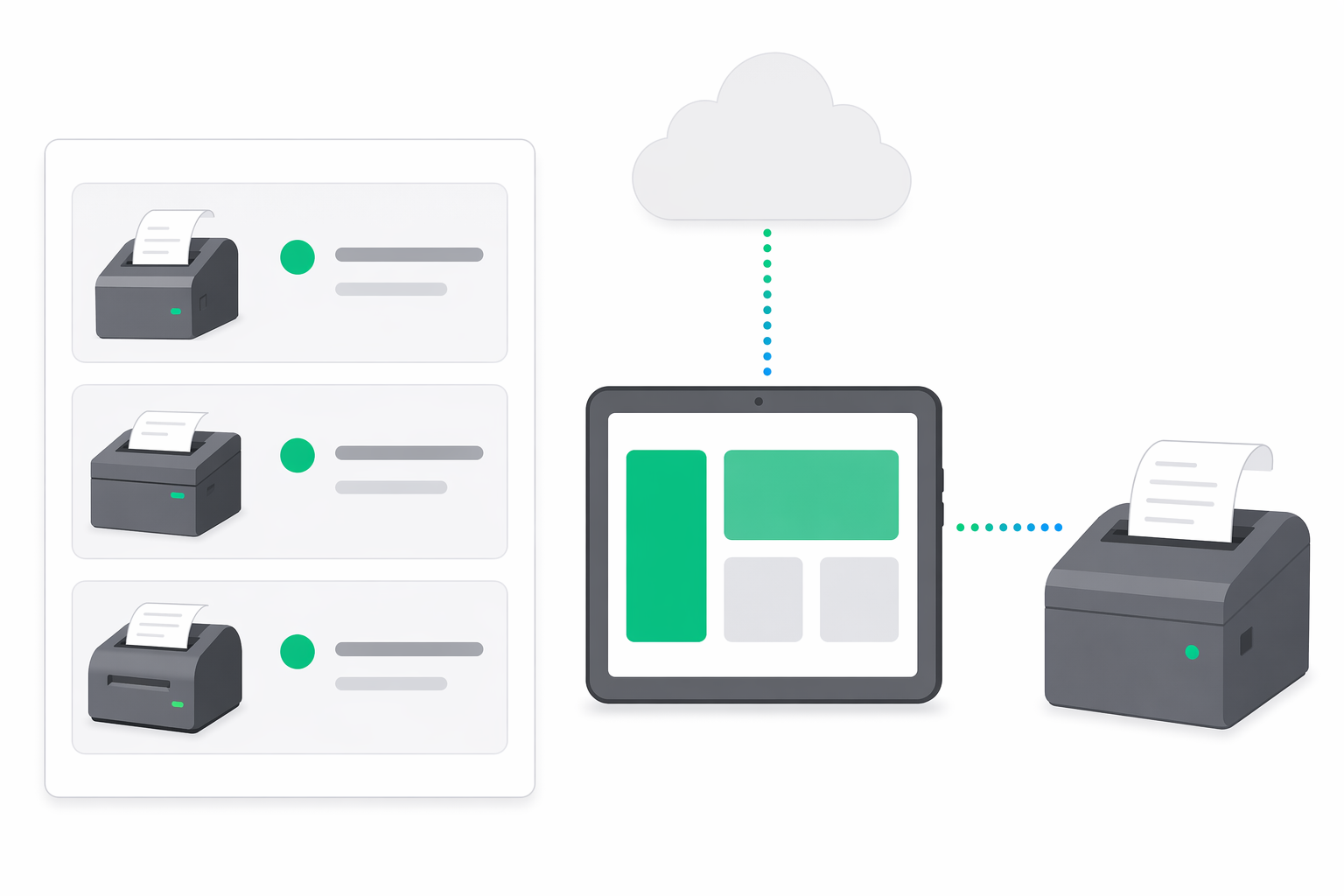
A device in e-bon is a fiscal printer (AMEF) that issues your receipts. Each device is paired once with the E-BON Android app on a tablet or phone — that app is the controller — and from then on you operate it from the Portal: see live status, send commands, browse the full command history and tune its settings, all without touching the hardware again.
View your devices
Open Devices from the Portal sidebar to see every fiscal device in your organization, grouped by location. Each location is a collapsible section with a count badge, so a multi-shop business can scan all its registers at a glance.
Every device card shows, in one row:
- Name — the friendly label you gave the device (e.g. Cash Register 1).
- Controller status — whether the E-BON app on the tablet is currently connected to the cloud (
Connected,Online (stale)orOffline). - AMEF status — whether the controller can reach the fiscal printer itself (
Connected,Disconnected,BusyorError). - Alerts — a coloured badge if the device has open alerts, with the highest severity setting the colour.
- Driver & transport — the fiscal driver (e.g. Datecs, Tremol) and how the controller reaches the printer (TCP, serial, Bluetooth).
- Last seen — relative timestamp of the last status update.
- Controlled by — which controller phone or tablet currently owns this device, or
Uncontrolledif no app has claimed it.
Use the search box above the list to filter by name, device id or location name; clear it with the small × button on the right of the input.
Add a device
The Portal pre-registers the device so the controller app knows what to claim. The actual fiscal pairing happens once on the tablet running E-BON.
Click Add Device in the top right
The button is disabled until you have at least one location. Once enabled, it opens the Add Device modal.
Fill in name, driver and transport
- Name — anything a colleague would recognise (e.g. Cash Register — Bar). It also shows up next to every receipt and report from this device.
- Driver — pick the fiscal driver your printer speaks (Datecs, Tremol, etc.).
- Transport — how the controller phone or tablet reaches the printer: TCP for network-attached AMEFs, or a serial / Bluetooth address for direct connections.
Choose the location
Assign the device to one of your existing locations. You can move it later from the Settings tab without losing any history.
Enter connection parameters
- For TCP, provide the printer's host (IP or hostname) and port (e.g.
9100). The Portal validates the port is between 1 and 65535. - For other transports, provide the device address (e.g.
/dev/ttyUSB0or a Bluetooth MAC).
Save
The device appears in the list immediately with Uncontrolled status. Open the E-BON app on the tablet that will run this register, sign in to the same organization, and claim the device — once the app connects, the controller and AMEF status badges turn green.
Open device details
Click any device in the list to open its detail page. The header shows the device name and its current effective status; below it, four tabs cover everything you can do.
Overview
The default tab. It groups everything you usually want to check first:
- Device information — driver, transport, connection string, the controller currently in charge, the assigned location, when it was last seen and the cash drawer balance.
- Hardware information — fiscal serial number, firmware version, fiscal memory status, manufacturer and model. The Refresh button queries the printer live; it is disabled while the device is offline.
- Last receipt — receipt number, date, total in RON and fiscal memory number for the most recent receipt issued, also fetched live on demand.
- Alerts — a sortable list of any open device alerts with severity, message and detection time.
Operations
The Operations tab is the remote control. It is grouped into accordions so you only see what you need:
- Cash management — refresh the drawer balance, post a cash deposit or withdrawal.
- Fiscal configuration — sync date and time, push VAT rates.
- Receipts — print a duplicate, issue a non-fiscal receipt, void an open receipt or print a reversal receipt against an existing fiscal receipt number.
- Reports — request X and Z reports.
- Advanced — driver-specific maintenance commands.
If the device is offline, the tab shows a yellow Device is offline. Operations are disabled. banner and every action is greyed out. Any commands still queued or in flight appear at the top under Pending commands, with elapsed time and a Cancel button per command.
History
A paginated table of every command sent to this device — local from the controller, from the Portal, or via the API. Each row shows command type, status, source, date and the duration the command took to complete. Failed commands also display the underlying error code, colour-coded so retryable errors stand out from terminal ones.
Use the All types dropdown above the table to filter by a single command type. The table refreshes every 30 seconds in the background, so you can leave it open during testing — see Device history for the full reference.
Settings
The Settings tab is where you change anything about the device after it was added. You can update its name, move it to a different location, and edit the connection parameters (host and port for TCP devices, address for the others). Driver and transport are shown read-only — to change those you delete the device and add it again so a fresh fiscal pairing is performed.
At the bottom, the Danger Zone card holds the Delete device action.
Compare controller and AMEF status
Every device card shows two status badges side by side. They look similar but answer different questions, and reading them together tells you exactly where a problem is.
Connected means live; Online (stale) means the cloud last marked the device online but the live socket is gone; Offline means we have no current channel to it.AMEF status = can the controller currently reach the fiscal printer hardware itself? Connected means the printer answered the controller's last health check; Disconnected means the controller cannot see it (cable unplugged, printer powered off, network unreachable); Busy means a command is in progress; Error means the printer reported a fault.Connected / Connected is the happy path. Connected / Disconnected means the tablet is online but the printer beside it is not — start with the cable, power and the printer's own display. Offline / — means the controller tablet itself is unreachable, so no AMEF status can even be evaluated; check the tablet's network and the E-BON app.Rename or remove a device
- Rename — edit Name under the Settings tab and click Save changes. The new name takes effect everywhere immediately, including past receipts in the Portal listing — historical fiscal receipts on paper are unaffected.
- Reassign to another location — change the Location dropdown under Settings and save. Future receipts, reports and alerts follow the new location automatically; past ones stay attributed to the location that was active when they were issued.
- Delete — open Settings → Danger Zone, click Delete device and confirm in the modal. Deletion is permanent and removes the device's configuration from the Portal. Make sure no controller is still actively printing on it before you delete; for a routine swap, prefer renaming or reassigning.
Next steps
- Pair the controller phone or tablet — the Integration walkthrough walks through installing the E-BON Android app and claiming the device you just added.
- Step back to organise your business — see the Locations guide for managing the shops your devices belong to.
- Need an overview of the whole Portal first? Start at the Portal section.
Sign-up & Sign-in
Create your e-bon account, sign in to the Portal, and reset a forgotten password at e-bon.ro.
Device detail — Overview
The first thing you see when you open a device in the Portal — the device clock and drawer balance with cash operations, hardware info, the last receipt it printed and any active alerts.