
How receipt emission works
When you ask e-bon to print a fiscal receipt, the request travels from your server, through the e-bon API, and out to the AMEF device sitting on the merchant's counter. This page explains that journey from your perspective: what the API does on your behalf, how long each stage takes, and how you find out whether the receipt was printed.
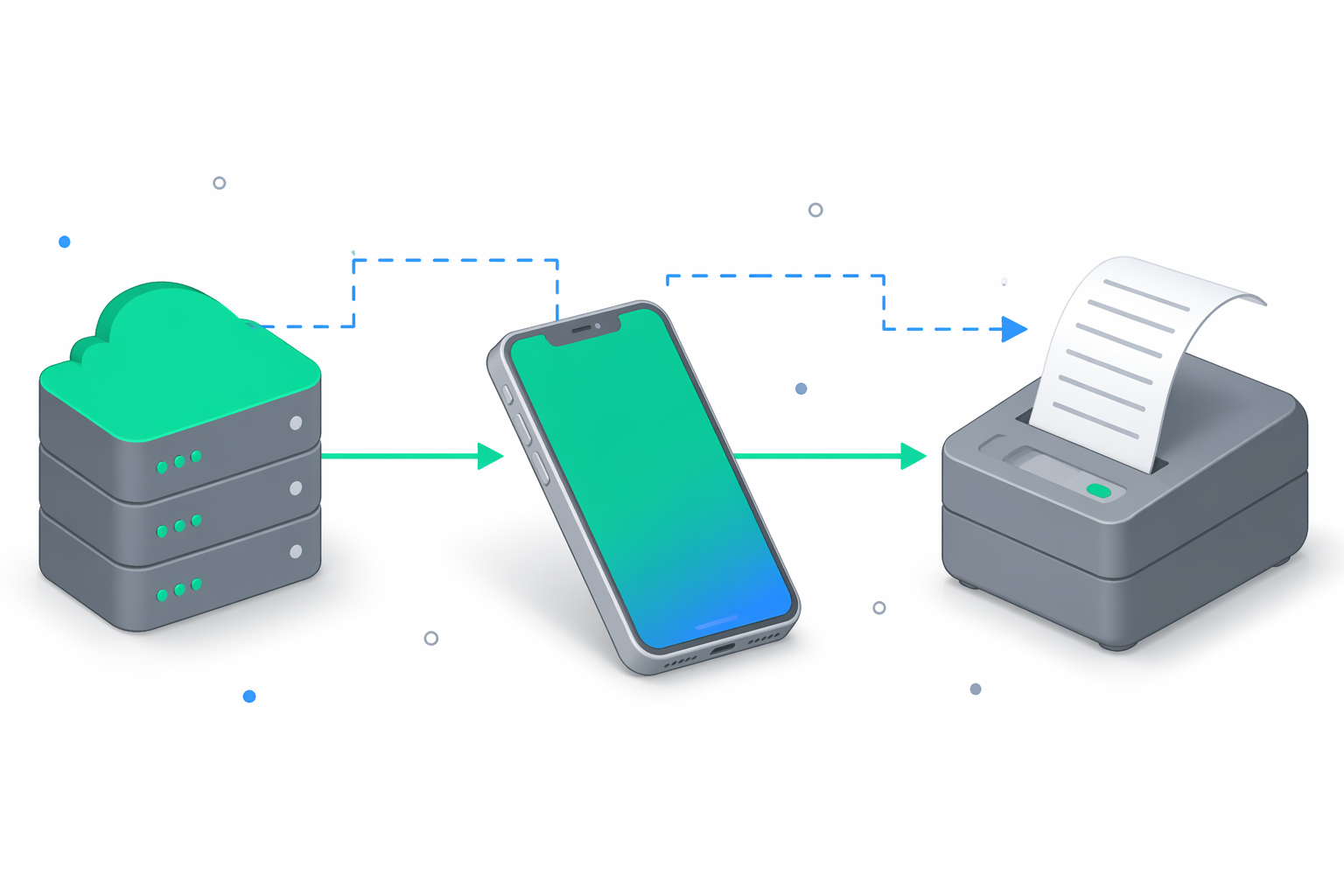
The same pipeline runs for every fiscal command — print_receipt, print_reversal_receipt, void_receipt, x_report, z_report, cash_in, cash_out. Receipts are just the highest-volume case.
Send the print command
Issue a single HTTP request to dispatch a print job:
POST /api/v1/devices/{deviceId}/commands
Content-Type: application/json
Idempotency-Key: <your-key>

{ "type": "print_receipt", "payload": { /* receipt body */ } }
The API responds immediately with 201 Created and status: "pending". The actual print runs in the background — your client is never blocked while the device works.
POST /api/v1/devices/{deviceId}/commandswithtype: "print_receipt"is the trigger. The device prints as a side effect.POST /api/v1/receiptsis persistence-only. It stores a receipt that was already printed (typically posted back by the device app). It does not invoke the printer.
Reach the device
The API uses a two-tier strategy to reach the device. You don't choose between them — the system picks automatically based on the device's current connection state.
Try the live connection first
If the device app is connected over WebSocket, the API hands the command to it directly. This is the normal path and usually completes in under a second.
Fall back to a push wakeup
If the device is not currently connected (mobile network blip, app backgrounded), the API enqueues the command server-side and sends a high-priority push notification through Firebase Cloud Messaging (FCM). The push is wakeup-only — its payload is { "type": "wake" } and carries no command data. The app reacts by reopening its WebSocket, at which point the server drains the queued command over that fresh connection. The result always returns over the same WebSocket — FCM never carries a result. See FCM wakeup channel for the underlying protocol.
Sweep stuck commands with a safety net
A background sweeper runs every 30 seconds. Any command that has been stuck in pending or sent for more than 180 seconds is forced to timeout so it never hangs forever.
You see all of this as a single status flow on the command document — you don't need to know which path was taken.
Plan for the timing budget
| Stage | Limit | What it means for you |
|---|---|---|
| Live WebSocket attempt | 30 s | If the device replies in time, you get the result on the same channel. |
| Push wakeup + reconnect + result | ~60 s typical | If the device is offline, the API queues the command and pushes a wakeup; the device reopens its WebSocket and drains the queue. The result still arrives over WebSocket. |
| Safety sweep | 180 s | A command that hasn't reached a terminal state in 180 s is forced to timeout. |
If you build a synchronous user flow on top of these calls, design for up to ~3 minutes worst case before a final status appears. In practice, the live path completes in under a second.
Receive the result
Two ways to find out what happened, and you can use both:
Subscribe to these events when you create your webhook endpoint:
command.completed— the device executed the command successfully.command.failed— the command failed for any reason within the live or push attempt.command.timeout— the 180 s safety sweep terminated the command.receipt.created— emitted shortly aftercommand.completedfor aprint_receipt, when the device app posts the printed receipt back to e-bon.
Webhooks are the right primitive for fiscal flows because they push a result the moment it is known.
GET /api/v1/commands/{commandId}
Poll every few seconds. Stop when status is completed, failed, or timeout. See Status & state machines for the full state list.
Handle each outcome
Final status | Meaning | Webhook event | Your action |
|---|---|---|---|
completed | The device printed the receipt and reported a fiscal ID. | command.completed, then receipt.created | Record result.fiscalId and result.fiscalDate against your order. |
failed (live path) | The device responded with an error — paper out, fiscal memory full, ANAF rejection, driver error, etc. | command.failed | Read errorCode and errorMessage. Surface the cause to the operator, then retry with a fresh command. |
failed (wakeup path) | The device was offline and the FCM wakeup could not be sent (no FCM token registered, FCM error) or the queued WebSocket send failed once the device reconnected. | command.failed | Verify the device is registered and online, then retry. |
timeout (wakeup path) | The device was offline, the wakeup fired, but no result arrived within the WebSocket timeout after reconnect. The receipt may have printed but the device did not confirm in time. | command.failed | Check the device. Print may need to be re-issued — verify before retrying to avoid duplicates. |
timeout (safety sweep) | 180 s elapsed with no terminal status. | command.timeout | Same as above. Inspect the device, then decide whether to retry. |
timeout does not guarantee the receipt was not printed. The device may have printed successfully but lost connectivity before reporting the result. Always confirm with the operator before re-issuing a print command — duplicate fiscal receipts cannot be undone, only reversed with a separate command.Avoid duplicate prints
Always send an Idempotency-Key header on POST /commands. If your client retries the same request (network blip, restart), e-bon returns the original response instead of issuing a second print. See Idempotency & retries for the full behaviour, including key TTL and replay rules.
Distinguish receipt and command events
A successful print_receipt produces two webhook events, in this order:
command.completed— fires the moment the device confirms execution. Includes the fiscal ID inresult.receipt.created— fires shortly afterwards (typically within the same second) when the device app posts the full receipt body back to e-bon for storage.
If you only care about whether the print succeeded, command.completed is enough. If you need the full itemised receipt — line items, VAT breakdown, payment splits — listen for receipt.created and read it via GET /api/v1/receipts/{id}.
Continue your integration
- Status & state machines — every status value a command can hold.
- Command types — the catalogue of fiscal commands you can dispatch.
- Receipts API — REST reference for posting and querying receipts.
- Webhook events — retries, signatures, and auto-disable rules for your webhook endpoint.
- Idempotency & retries — how to deduplicate safely.
- Integration walkthrough — end-to-end sandbox loop.
Command payload validation
Validation rules e-bon applies to every command request before it reaches your fiscal device — VAT rates, payment types, reversal reasons, items-vs-payments balance, and the error response you get when a payload is rejected.
Authenticate API requests
Authenticate to the e-bon API with an API key or a Portal sign-in token, manage scopes and roles, and handle authentication errors.