Pairing your fiscal printer
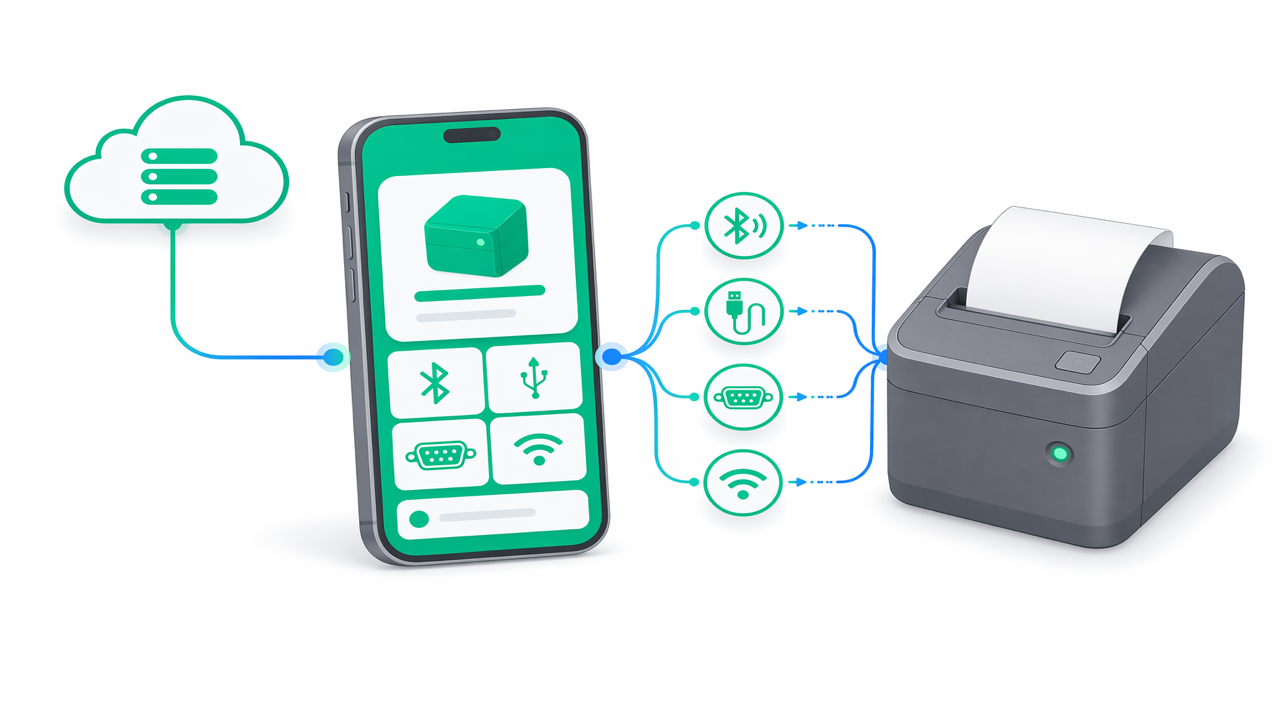
Once the app is installed and signed in, the Devices tab is where you introduce each fiscal printer (AMEF) to E-BON. This page walks through the four supported transports — Bluetooth, USB, Serial, TCP — explains how the app auto-detects the protocol the printer speaks, and shows what to do when auto-detection cannot pin down the model.
The central entry point for every flow on this page is the Device Discovery screen. Open the Devices tab and tap Add device — that lands you on the three-button discovery screen described below.
Pair over Bluetooth
Bluetooth is the most common transport for counter-top and mobile AMEFs. The E-BON app deliberately does not run its own Bluetooth bonding flow: it relies on Android's own pairing UI, then picks the printer up as an already-bonded device. This keeps PIN entry, passkey confirmation and encryption negotiation in the hands of the OS, where they belong.
Pair the printer in Android's Bluetooth settings first
Put the printer into pairing mode (consult the printer manual — most Datecs and Tremol devices hold a button on the control panel until the beeper sounds). On the Android device open Settings → Connected devices → Pair new device, tap the printer when it shows up, and confirm the passkey. When the OS reports the device as Paired, you are done here.
Open Device Discovery in the app
In the app, tap Devices → Add device. On the Device Discovery screen tap Scan Bluetooth. The app enumerates bonded Bluetooth devices and starts a short BLE scan, collating the results into the list underneath the action cards.
Pick the printer and confirm on the Pairing screen
Tap the entry for your printer. The app navigates to the Device Pairing screen, pre-filling the device name and the suggested driver (if it could infer one from the Bluetooth name or service UUIDs). Edit the display name, assign a location label if you use one, verify the driver chip, and tap Pair Device. The device is saved locally and registered with the cloud in one shot.
Connect over USB
Romanian ANAF-certified AMEFs do not typically expose a native Android USB-HID fiscal interface — they show up as serial devices over a USB-to-Serial bridge (CDC-ACM for printers with a built-in UART, or an external FTDI / CH340 / CP210x cable from the printer's RS-232 port to the phone's USB-C). For that reason the app does not request a generic USB-host permission, and the supported devices matrix treats USB as reached via the Serial transport.
In practice:
Plug the adapter into the Android device
Connect the USB-to-Serial bridge (or the printer's USB cable, if the printer presents itself as CDC-ACM) to the phone or tablet. Android shows the familiar per-device USB permission prompt — the one-time system dialog asking whether to let E-BON access this specific USB device. Tap OK, and tick Always open E-BON when this USB device is connected if you want to skip the prompt next time.
Use Manual Connect to register the serial endpoint
Because the adapter is addressed as Serial, open Devices → Add device → Manual connection. Pick the printer's driver, leave transport on Serial, and enter the identifier Android reported for the adapter (typically /dev/ttyUSB0 or the CDC-ACM node name). Baud defaults to 115200; drop it to 9600 for Incotex and for the Custom generic adapter.
Connect over Serial (RS-232)
Serial covers a direct RS-232 cable (including the USB-to-Serial bridge case above) between the printer and the Android host. There is no discovery step — the printer exposes no scannable beacon — so serial always goes through Manual Connect.
Open Manual Connect
Tap Devices → Add device → Manual connection to open the manual setup form.
Pick driver and transport
Select the driver that matches your printer (Datecs, Tremol, Daisy, Eltrade, Incotex, MF/JE for Shtrih, or Custom for anything not listed). Set Transport to Serial.
Fill in address and baud
Enter the serial port identifier (for example /dev/ttyS0 or /dev/ttyUSB0) in the Address field. The default baud rate is 115200, matching the registry defaults for the ISL and ZFP families. Lower it to 9600 for Incotex and for the Custom fallback — both ship with a 9600-baud default in the protocol registry.
Connect over TCP
TCP is the transport for LAN-attached printers that expose a network fiscal service, and for printers reached through a Wi-Fi-to-serial bridge sitting on the same subnet. Add them either by running a Scan network pass from Device Discovery — which probes the registry's default ports on the local subnet — or by entering the IP and port by hand in Manual Connect.
Put the printer on the network
Make sure the printer (or the bridge in front of it) is reachable from the Android device's subnet. Note the IP address — it is almost always visible on the printer's status receipt or admin menu.
Pick the port for the protocol family
The default TCP port depends on the family:
9100— Datecs, Daisy, Eltrade, Incotex, MF/JE. Every ISL and the Shtrih entry share this port.4999— Tremol. This is the distinctive ZFP port.8000— the Custom generic Serial/TCP fallback, checked last.
Register the device
Either kick off Scan network on the Device Discovery screen and tap the match that appears (the scan probes the ports above on the local subnet and merges results by host), or go through Manual connection, set Transport to TCP, and enter the Host and Port fields directly.
Understand how auto-detection works
When you tap Scan network or Scan Bluetooth, the app does not yet know which protocol the discovered device speaks. It walks through a built-in list of candidate protocols in a fixed order and tries them one after the other until one accepts the connection.
The probe order is fixed and ships with the build:
- Datecs (ISL)
- Tremol (ZFP)
- Daisy (ISL)
- Eltrade (ISL)
- Incotex (ISL)
- MF/JE (Shtrih)
- Custom (Serial) — always last
Ordering roughly tracks installed-base size in the Romanian market: Datecs first, Custom last. For a TCP scan the probe is further narrowed by port — a hit on port 4999 only tries the Tremol entry, a hit on port 9100 tries the ISL and Shtrih families, and 8000 falls through to Custom. The full matrix of ports, baud rates and transports lives in Supported devices & transports.
Fall back to Manual Connect when auto-detection fails
Auto-detection is best-effort. It can fail when the device is behind a firewall that blocks the default ports, when the printer speaks a non-listed dialect of an ISL variant, when a USB-to-Serial bridge exposes an unusual baud rate, or when a Bluetooth-over-SPP device advertises an uninformative name. In all of those cases the fallback is the Manual Connect screen, where you tell the app explicitly what to do:
- Device name — free-text label that will appear on the Devices list and on issued receipts' device column.
- Driver — pick the exact registry entry. If you genuinely do not know, start at the manufacturer's family (Datecs → ISL, Tremol → ZFP, Shtrih → MF/JE) and only fall through to Custom after those fail.
- Transport — TCP, Bluetooth or Serial. The USB chip is shown for completeness but resolves to Serial under the hood for now.
- Connection fields — Host + Port for TCP (port pre-filled to
4999; change to9100for ISL/Shtrih or8000for Custom); Address for Bluetooth (the MAC) and Serial (the device node). - Test connection — runs a live handshake against the chosen driver and transport before you commit. A green tick means the app successfully negotiated the protocol; a red cross points at the wrong driver, wrong port or an unreachable host.
When Test connection succeeds, tap Save device. The entry lands in the on-device list immediately, then the cloud registration is attempted in the background — the same two-step path used by the Bluetooth pairing flow.
Troubleshoot and continue
If pairing fails, the usual fault lines are covered in the Troubleshooting guide — the Bluetooth permission prompt never appeared, the USB dialog was dismissed, the host is on a different subnet, the printer returned no response to any of the nine probe candidates, or the driver auto-detected correctly but the cloud claim failed. Each case has a dedicated remediation there.
Once the device is paired, manage it day-to-day from the Devices tab on the app and from the Portal's Devices page, which shows every paired printer across every location, with live status, driver, transport and last-seen timestamp.
Create a new receipt
Build a receipt on the device — add line items, pick the VAT rate and department, choose a payment method, then preview and print.
Daily operations
Issue receipts, reprint duplicates, run X and Z reports, manage cash deposits and withdrawals, and close the fiscal day from the E-BON Android app — every action wired to the operations tab on the device detail screen.