Discover devices on your network
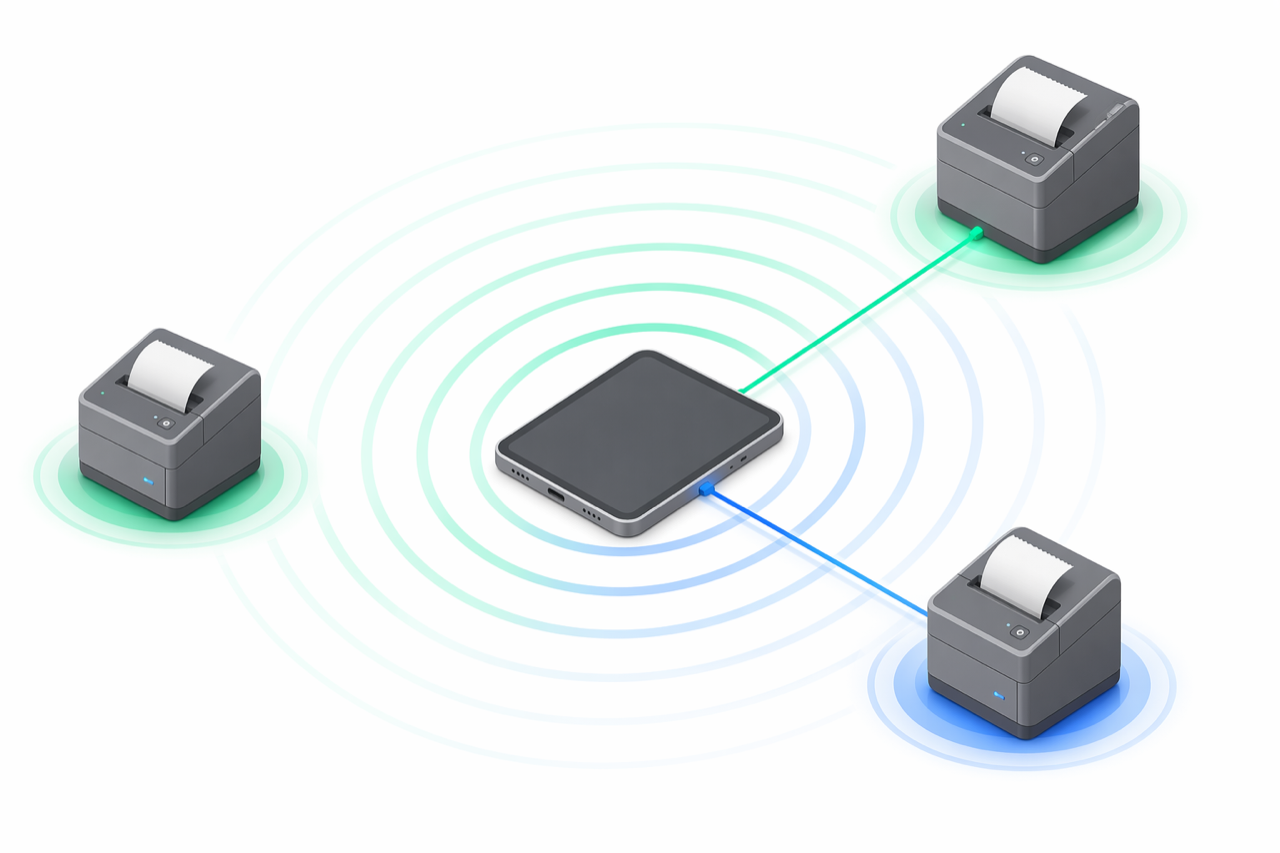
When you set up a new fiscal printer with e-bon, you don't have to type its IP address or pair it manually. Tap Scan in the e-bon device app and it will look across your local network and over Bluetooth for printers it knows how to talk to.
This page explains what Scan does, how to read what it returns, and what to check when it comes back empty.
Run a scan
Open the device app and go to pairing
On your Android device, open the e-bon device app and tap Add device (or the + button on the devices screen).
Tap Scan
The app starts looking on two channels at the same time:
- Local network (TCP) — checks every address on your local subnet for the standard fiscal-printer ports.
- Bluetooth (BLE) — looks for nearby Bluetooth fiscal printers in pairing mode.
A scan takes a few seconds. Found devices appear in the list as soon as they answer.
Pick your printer
Tap the entry that matches your printer's brand. e-bon suggests the most likely driver for that brand — accept the suggestion unless you know your model needs a different one.
Continue pairing
Once you select a device, the rest of the pairing flow takes over. See Pairing your fiscal printer for the full walkthrough.
See what Scan checks on the network
The network scan walks every address on your local IPv4 /24 subnet and probes the three ports used by supported fiscal printers in Romania.
| Setting | Default value | What it means |
|---|---|---|
| Subnet | 192.168.1.x | Addresses 192.168.1.1 through 192.168.1.254. |
| Ports | 9100, 4999, 8000 | Standard fiscal-printer ports across all supported brands. |
| Per-host timeout | 1.5 seconds | How long the app waits for each address to answer. |
If your network uses a different subnet (for example 10.0.0.x or 192.168.0.x), pass the correct prefix in the scan options before running a scan.
Understand how brand priority works
When a printer answers on a port shared by several brands (most use port 9100), e-bon ranks the candidates by how common each brand is on the Romanian market. The first suggestion is the most likely match.
| Order | Brand / Driver | Default port | Notes |
|---|---|---|---|
| 1 | Datecs | 9100 | Datecs models (MX, X, classic lines). |
| 2 | Tremol | 4999 | Standard Tremol protocol. |
| 3 | Daisy | 9100 | Standard Daisy. |
| 4 | Eltrade | 9100 | Eltrade printers. |
| 5 | Incotex | 9100 | Incotex printers. |
| 6 | MF/JE | 9100 | MF/JE compatible models. |
| 7 | Custom (Serial) | 8000 | Generic / serial-bridged printers. |
Port 4999 is unique to Tremol, and port 8000 is unique to Custom. A response on either of these ports narrows the brand right away. A response on port 9100 means e-bon will offer all five brands that use it — pick the one printed on your device.
For per-brand setup details, see the vendor pages: Datecs, Tremol, Daisy, Custom (Serial).
Read the scan results
Each found device shows:
- Name — for Bluetooth devices, the model name advertised by the printer. For network devices, the IP address.
- Suggested brand — the top candidate from the priority list above.
- Connection — Network or Bluetooth.
- Signal strength — only for Bluetooth, helps you confirm the printer is the closest one.
A printer reachable on both Wi-Fi and Bluetooth shows up twice — once per channel. Pick whichever connection you want to pair with.
Fix an empty scan
If the scan finishes and shows nothing, check these in order:
- Wrong subnet. The default scan covers
192.168.1.x. If your router uses192.168.0.x,10.0.0.x, or anything else, your printer is outside the scan range. Set the subnet explicitly when you start the scan. - Printer on a non-standard port. The scan only checks ports 9100, 4999, and 8000. If your printer is configured to listen on a different port, change it back to the standard for its brand or add a manual entry instead.
- Printer on a different VLAN or behind NAT. The Android device running e-bon must be on the same network segment as the printer. Guest Wi-Fi networks usually isolate devices and block this.
- Bluetooth not in pairing mode. Put the printer into Bluetooth pairing mode (consult the printer manual) before scanning.
- Printer powered off or in error. Check the printer's display for an error indicator and that paper is loaded.
- Scan already running. Wait for the previous scan to finish before tapping Scan again.
If everything checks out and the printer still doesn't appear, see Troubleshooting pairing for further steps, or pair the device manually by entering its IP and selecting the brand.
Where to go next
- Pairing your fiscal printer — full pairing walkthrough on Android.
- Supported devices — the complete compatibility matrix with default port and baud rate per brand.
- Devices in the app — manage paired devices once they're set up.
- Troubleshooting pairing — what to do when discovery returns nothing or the wrong brand.
Custom SpA (Serial)
Custom SpA is the Italian fiscal printer manufacturer. e-bon ships a first-class driver for the Custom serial protocol covering the SH1, ARM, RX/RT and IMX hardware variants over Serial or TCP.
API overview
How the e-bon REST API is shaped — base URL, versioning, error envelope, rate limits, idempotency and tier gating — for POS partners and integrators.